Disclosure up front. We make PicDock, an Android app that turns a tablet into a photo frame, so we are not neutral. To keep this useful, every Samsung setting below comes from Samsung's own support pages (samsung.com/support), checked on October 19, 2026, with a link next to each one. Where we could not find a Samsung page for something, we say so instead of guessing. Every PicDock detail comes from our public fact sheet. PicDock is listed on Google Play as "Photo Slideshow, Digital Frame" by DD_studio.
An older Galaxy Tab — an A-series, an S6 Lite, an S-series that got replaced — is one of the most common tablets left in a drawer, and it makes a good frame: a large screen, a stand-friendly shape and a USB charger you already own. What gets in the way is not the hardware but a handful of Samsung settings designed for a tablet you pick up and put down, not one that stands on a shelf all day.
Short answer:
- Only want your photos on screen while it charges? Samsung's own screensaver can do that with an album, free and built in.
- Want a clock and weather, cloud or NAS photos, or the frame to start by itself? You need a frame app. Then check screen timeout, Battery protection and Never sleeping apps.
1. Screen timeout: 10 minutes is the ceiling
Samsung UK's page “How to stop your Galaxy phone or tablet screen going dark & timing out?” says the default is 30 seconds, that “The maximum screen timeout time is 10 minutes”, and that “It is not possible to set screen timeout to none.” The path is Settings > Display > Screen timeout. Samsung Australia's “Adjusting Screen Timeout on my Galaxy Device” says the same: you are “NOT able to set your screen timeout to none”.
Samsung US, in “Screen turns off while using Galaxy phone or tablet”, also lists Keep screen on while viewing, which “prevents the display from turning off while you are looking at it”, with the note that it “may not be available on some devices or software versions.” That helps when you are reading; a frame on a shelf usually has nobody looking at it.
So on a Galaxy Tab, the system setting alone will not keep a frame on all day. We did not find a Samsung support page describing a “keep the screen on while charging” setting, so we will not tell you one exists. In practice the screen stays on because the frame app keeps it on while it runs: PicDock has a keep-screen-on option, and it can start automatically when the charger is connected or on boot (facts).
2. Samsung's built-in screensaver — sometimes it is enough
Samsung's page “How to Enable Screen Saver on a Galaxy Phone” (it covers phones and tablets; last updated 2026-06-24) gives the path Settings > Display > Screensaver, with options such as Photo Frame, Photo Table, or Photos; for those you tap Select Album. It says “Once the screen turns off while your device is charging, the selected screensaver will appear”, and the troubleshooting list starts with “Ensure your device is connected to a charger.”
If all you want is an album from the tablet's own gallery while it sits on the charger, that is free and already on the device. It is the right choice if you do not need anything else. What it does not offer, per that page, is a clock or weather overlay, photos from a cloud folder or a NAS, or a schedule — and it only runs while charging.
PicDock can also register as the Android screensaver (Daydream). Like Samsung's, that screensaver shows photos stored on the device; cloud and NAS sources play in the app's full-screen slideshow instead (facts). More on screensavers in general: Android screensaver with your own photos.
3. Battery protection: for a tablet that never leaves the charger
A frame lives on its charger, which is exactly the case Samsung's Battery protection is for. Samsung Hong Kong's page “Galaxy Battery protection feature in One UI 6.1” (last updated May 05, 2026) says “Keeping your battery at a full 100% charge for a long time can reduce its lifespan”, and lists three options on One UI 6.1 or later:
- Basic — “When your battery is charged to 100%, charging will stop until the battery level drops down to 95%”.
- Adaptive — uses Maximum while you are asleep and switches to Basic before you wake up.
- Maximum — “Your battery will stop charging when it reaches 80%.”
For older tablets the same page notes: “On models with an operating system below One UI 6.1, the only option to extend the lifespan of your battery is to limit the maximum charge to 85%.” The path is Settings > Battery > Battery protection. Samsung US (“battery is not charging past 80% or 85%”) confirms this is why a Galaxy phone or tablet can stop at 80% or 85% — so if your frame never shows 100%, that is the feature working, not a fault. Both pages say the options vary by model and region.
Samsung does not tell you which option to pick for a frame, and neither will we. For a tablet that is always plugged in, the Samsung page's own reasoning — a battery held at 100% for a long time ages faster — is the argument for turning one of them on.
4. Never sleeping apps: keep the frame app awake in the background
Samsung puts unused apps to sleep. Samsung US's page “Sleeping apps on your Galaxy device” describes the menu Settings > Battery and device care > Battery > Background usage limits, where “Put unused apps to sleep” means “If you haven’t used an app in a while, it will automatically be put to sleep”. The same menu has a Never sleeping apps list: “You can add apps that will never turn off or sleep in the background” — tap +, choose the app, tap Add. Menu names differ on some models and One UI versions.
A frame app does some of its work when you are not touching it: waiting for the charger to be connected, starting after a reboot, refreshing a cloud folder. PicDock does all three (auto-start on charger or boot; cloud and NAS sources refresh automatically at intervals, per our facts). Adding the frame app to Never sleeping apps is a simple precaution so that Samsung's battery management does not treat a quiet frame as an unused app. We have not measured on every Galaxy model what happens without it, so treat this as a precaution, not a proven fix.
On how reliably a tablet can be woken from a dark screen on recent Android versions — including what we saw on a Galaxy Tab S9 FE — see keeping an Android tablet on as a photo frame.
Setting it up, in order
- Put the tablet on a stand near an outlet and connect the charger.
- Settings > Battery > Battery protection: choose an option (or the 85% limit on older One UI).
- Install a frame app and pick a photo source — an album on the tablet, Google Photos, Dropbox, OneDrive, iCloud Shared Albums or a NAS share in PicDock.
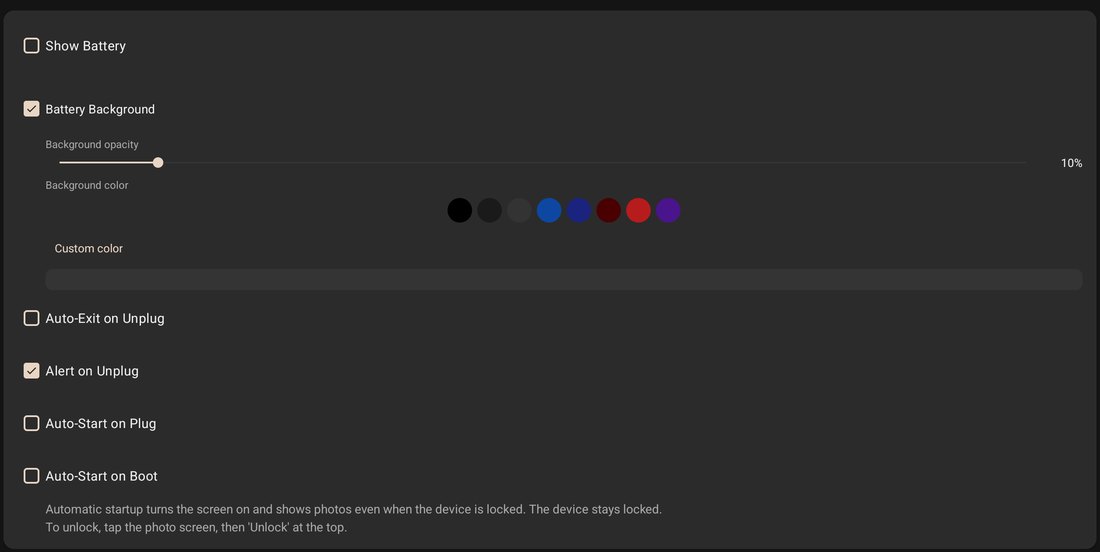
- In the app, turn on keep-screen-on and auto-start on charger (in PicDock: Auto-Start on Plug, Auto-Start on Boot).
- Battery and device care > Battery > Background usage limits > Never sleeping apps: add the frame app.
- Optional: set a night schedule so the frame dims or sleeps at night. Guide: night dimming, sleep schedule and alarm.
Samsung screensaver vs. a frame app
| Samsung screensaver | PicDock | |
|---|---|---|
| Cost | Built in | Free; optional Premium |
| When it shows photos | When the screen turns off while charging | Full-screen slideshow while the app runs; can start on charger or boot |
| Photo sources | A selected album | Device albums, Google Photos (picker), Dropbox, OneDrive, iCloud Shared Albums, NAS/SMB, web upload (Premium) |
| Clock and weather | Not stated | Yes |
| Night dimming / sleep schedule | Not stated | Yes |
| Videos | Not stated | From device storage; NAS as an opt-in beta |
Sources: Samsung screensaver page; PicDock facts. Checked October 19, 2026. “Not stated” means Samsung's page does not mention it.
What PicDock does not do
- No Google Drive. Google Drive is not a supported photo source.
- No video from cloud sources. Videos play from device storage and, as an opt-in beta, from a NAS / SMB share; videos in Google Photos, Dropbox, OneDrive or iCloud Shared Albums are not played.
- The screensaver mode shows device photos only. Cloud and NAS photos play in the app's slideshow, not in the Android screensaver.
- It cannot change Samsung's settings for you. Battery protection and Never sleeping apps are set in Samsung's own menus.
- This is about the Android app. Cloud and NAS sources are Android-only; PicDock's separate iPhone and iPad app shows the photo library on the device.
What it costs
PicDock on Google Play is free to download, and every photo source except web upload is free, with no time limit; new installs get a 7-day trial of all features. Optional Premium (more transitions and clock designs, Smart Focus, hourly and 5-day forecasts, and more) is available as a lifetime purchase (US$19.99), or a yearly or monthly subscription — prices are shown in the app and vary by country. The Amazon Appstore version for Fire tablets is a US$4.99 paid app. Full details: PicDock facts page.
FAQ
Can a Samsung Galaxy Tab be used as a digital photo frame?
Yes. Samsung's screensaver can show a chosen album when the screen turns off while charging. For a full-screen slideshow with clock and weather, cloud or NAS photos, and automatic start on the charger, you need a frame app such as PicDock.
How do I stop a Galaxy Tab screen from turning off?
Samsung's pages say screen timeout goes up to 10 minutes and cannot be set to none. Beyond that, the frame app has to keep the screen on while it runs; PicDock has a keep-screen-on option and can start when the charger is connected.
Should I turn on Battery protection on a Galaxy Tab that is always plugged in?
It is worth looking at. Samsung says a battery held at 100% for a long time ages faster. On One UI 6.1 or later there are Basic (stops at 100%, resumes at 95%), Adaptive and Maximum (80%); older versions offer an 85% limit. Settings > Battery > Battery protection.
Is PicDock free on a Samsung tablet?
Yes to download, and every photo source except web upload is free, with no time limit. Optional Premium is a lifetime purchase or a yearly or monthly subscription; prices vary by country.
In short
A Galaxy Tab is a good frame once you know which Samsung settings are working against you: a 10-minute timeout ceiling, a screensaver that only runs on the charger, a battery that would rather not sit at 100%, and battery management that puts quiet apps to sleep. Samsung's screensaver is enough for an album on the charger; for more, set up a frame app and the two battery menus. Related: turn an old tablet into a frame · OLED burn-in and always-on screens · Fire tablet as a frame.
Get PicDock on Google Play · PicDock facts · Keeping a tablet on · Night mode and sleep schedule