We make a weather-clock app, so we have an obvious reason to tell you not to worry about this. We would rather tell you what is true, including the part where our app does nothing about it.
The short answer
- OLED can burn in. A bright element that never moves is the worst case for it, and a clock is precisely that.
- LCD cannot. If you have two old phones, use the LCD one for this.
- Brightness decides almost everything. It is a bigger lever than the app, the theme or the layout.
- On a retired phone it is usually a fine trade. The phone is already past the life you paid for.
What burn-in actually is
Each OLED subpixel makes its own light, and it dims a little every hour it is driven. Drive one part of the panel harder than the rest for long enough and that part ends up permanently dimmer. You do not see a burned-in clock — you see a faint ghost of everything around the clock, because those pixels stayed fresh while the clock's pixels wore down.
This is often confused with image persistence, a temporary ghost that LCDs and OLEDs both show and that fades on its own within minutes or hours. If the shape goes away by itself, nothing is damaged.
Modern OLED panels are far more resistant than the ones that gave the problem its reputation, and phone makers already shift their own always-on clocks around by a few pixels for this reason. What they do not do is protect an ordinary app drawing a static layout at the brightness you chose.
How fast, really
There is no honest number of months, because it depends on the panel, the brightness and the hours. What can be said is the shape of it: the risk scales with how hard the pixels are driven and how long, and it is dominated by brightness. A display sitting at a comfortable indoor level for eight hours a day is a different proposition from one at maximum for twenty-four.
So the question is not "will it burn in" but "how cheaply can I make that unlikely".
Six things that actually help
- Use an LCD phone if you have one. This removes the problem rather than managing it. Most mid-range phones sold before roughly 2019 are LCD; if the screen looks slightly grey rather than pure black when the phone is off, it is LCD.
- Turn the brightness down. The single biggest lever, and it also makes the display nicer to live with. Turn off adaptive brightness and set it by hand — a desk clock does not need to compete with daylight.
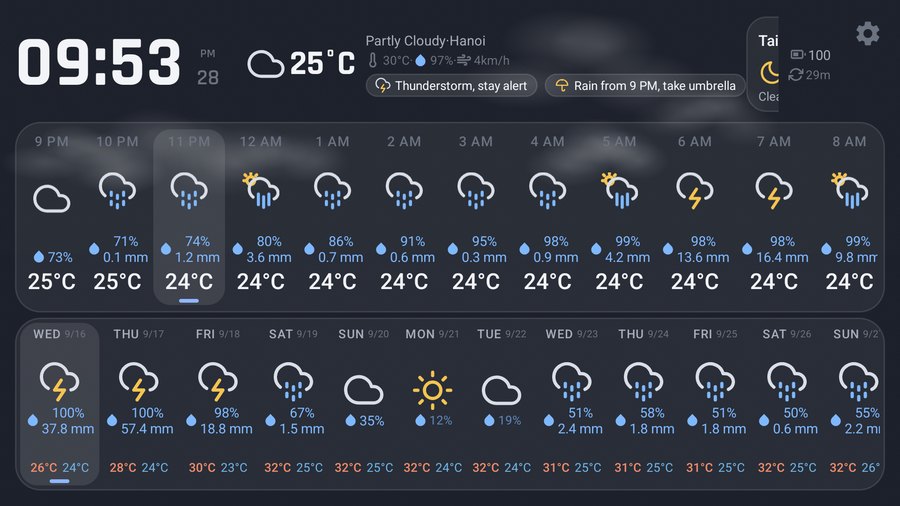
- Use a dark layout. On OLED, near-black pixels are nearly off. A dark theme with light text lights up a small fraction of the panel, so there is far less of it ageing. WeatherDock's default theme (Midnight) is a dark one, and the light one (Paper) is the worst choice for this particular worry.
- Give it a night off. Eight hours a day not lit is eight hours not ageing. Press the power button when you go to bed — the cheapest possible mitigation. Android's Bedtime mode can also dim and grey the screen, though whether it overrides an app that is holding the screen on varies by phone, so check yours.
- Change the picture occasionally. Switching theme, or rotating the phone between portrait and landscape every few months, moves the bright areas so no single region takes all the wear.
- Pick the phone you would not mourn. The real answer for most people. A 2017 handset in a drawer has no resale value worth protecting, and the display is already worn evenly from years of normal use.
What our app does and does not do
Plainly, so you can judge it against anything else you are considering:
| WeatherDock | |
|---|---|
| Pixel shifting | No |
| Automatic dimming | No |
| Night schedule / screen off | No |
| Brightness control | No — it uses whatever Android is set to |
| Dark theme as the default | Yes (Midnight), plus six others |
| Holds the screen on by itself | Yes — which is why this question matters |
The settings in the app are refresh interval, screen orientation and theme. That is the whole list. Everything in the six points above you do with Android's own display settings and your own hand on the power button — which is also true of every other app in this category, whatever its store listing implies.
Checking whether you already have it
Find a plain mid-grey image, open it full screen in a dark room, and look for faint shapes. Mid-grey reveals uneven ageing better than white or black do. Wait a few minutes before concluding anything: a ghost that fades was persistence, and nothing is wrong.
If you would rather not risk it at all
Then the answer is the built-in screen saver at low brightness, or an LCD device, or a dedicated smart display. We compared those routes honestly — including where ours is the wrong one — in always-on weather display on Android, five ways compared. The practical setup steps are in how to turn an old phone into a weather clock.