We make one of these apps, so read the table with that in mind. What follows is still the comparison we would give a friend: each route is described by what it actually does, including the places ours is the wrong answer.
The five routes
| Built-in screen saver | Home-screen widget | Browser tab | Dedicated app | Smart display | |
|---|---|---|---|---|---|
| Cost | Free | Free to a few dollars | Free | Free to a few dollars | A new device |
| Oldest Android | Any, but weather only on recent phones | Most versions | Whatever the browser still supports | Varies — WeatherDock runs on 5.0 (2014) | n/a |
| Keeps the screen on by itself | Yes, while charging | No — you force it in Developer options | Usually no | Yes, that is the job | Yes |
| What you see | Clock, sometimes weather | The whole home screen | A web page, plus browser chrome | A full-screen display | A polished panel |
| Readable across a room | Yes | Widget-sized | Depends on the page | Yes | Yes |
| Breaks when | Your phone is too old for the weather option | A notification or an update pulls you out of it | Wi-Fi drops, the tab reloads, the browser dims | The app is abandoned | The maker ends support |
1. The built-in screen saver
Start here, because it costs nothing and it may be enough. Settings → Display → Screen saver, turn it on, pick the clock, and set it to start while charging. Dock the phone and it lights up on its own.
The catch is weather. Google has been adding better screen savers — weather, analog and digital clock faces, photo frames — to recent Pixel releases, and other makers have their own versions. On the phone most people are actually reusing, a Galaxy or a mid-range handset from 2016 to 2020, you get a clock and that is it. Check your Settings before you install anything; if the clock alone is what you wanted, you are done.
2. A home-screen widget
There are good weather widgets — Digital Clock & Weather Widget, Transparent Clock & Weather, and KWGT if you enjoy building your own. They are the right tool on a phone you carry.
They are the wrong tool on a shelf. A widget lives on the launcher, and the launcher sleeps. To keep it lit you turn on Stay awake while charging in Developer options, which keeps the whole phone awake — status bar, notification shade, every app icon around your widget. It works, and it never stops looking like a phone someone left unlocked.
3. A browser tab
Several websites draw a large clock with the local temperature, and on a tablet with a keyboard-less stand this is genuinely quick: open the page, go full screen, done. No install, nothing to trust.
It falls over in the small ways. Mobile browsers dim and then sleep unless you add a wake lock, a dropped Wi-Fi connection leaves a blank page rather than the last known forecast, and an overnight tab reload can land you on a cookie banner. Fine for an afternoon; irritating as furniture.
4. A dedicated weather-clock app
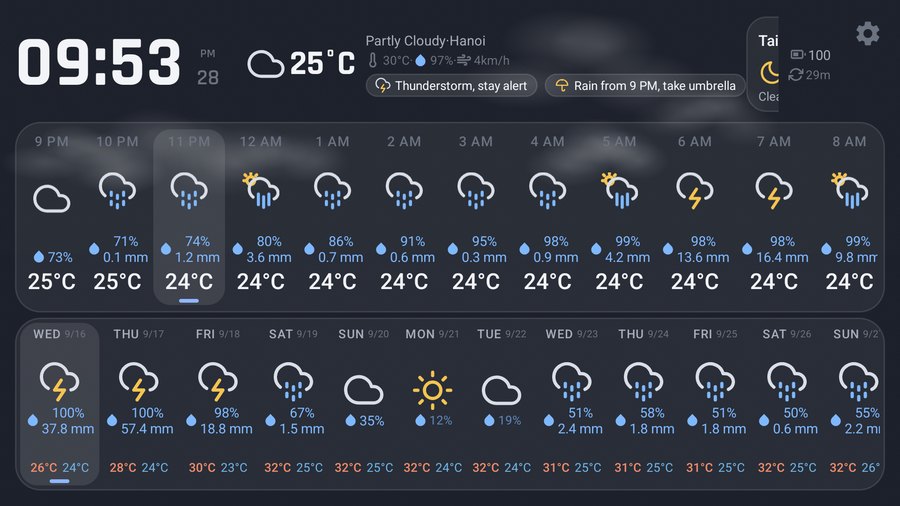
This is the category built for the job: the app holds the screen awake itself, draws one full-screen layout with no system furniture around it, and keeps showing the last forecast when the network drops. WhatWeather – Weather Station aims at the same use, and our own WeatherDock is in this group.
What to check before you commit to any of them:
- The minimum Android version. This is the one that disqualifies most apps for this purpose. An app that needs Android 10 cannot run on the phone in your drawer. WeatherDock targets 5.0 for exactly this reason.
- Whether it holds the screen on without Developer options. If the answer is no, it is a widget with extra steps.
- Where the forecast comes from, and who pays for it. Apps on a paid weather API eventually pass the bill on or shut down. WeatherDock reads Open-Meteo, which is free and keyless for any coordinate on earth.
- Whether your city is actually in it. Plenty of weather apps ship a city list rather than a search. Ours did, once, and the reviews told us so — now the search covers the whole world and the first launch picks a city from your time zone.
5. Buy a smart display
A Nest Hub or an Echo Show does this beautifully, along with timers, voice control and a smart-home panel. If you want those things, buy one — an app on an old phone is not going to answer you when you talk to it.
Two honest notes. It is the only option on this page that costs real money, and a smart display is only as long-lived as the company behind it; several discontinued models have lost features after launch. A phone running a local app keeps doing its one job regardless.
So which one
- You have a recent Pixel and want the simplest thing: the built-in screen saver. Nothing to install.
- You want it on the phone you carry: a widget.
- You want to try the idea for ten minutes: a browser tab.
- You have an old phone and want it to look like a product: a dedicated app.
- You want voice and smart home too: buy the display.
Where ours is the wrong answer
WeatherDock is a display, not a weather station. There is no radar map, no severe-weather push alert, no home-screen widget. If you need a storm warning to wake your phone at 3am, install a proper alerting weather app alongside it — that is a different product, and we would rather say so than sell you the wrong one.
Setting it up
Whichever route you take, the practical details are the same — keeping the screen on, the night schedule, burn-in, what it costs the battery. We wrote those up separately in how to turn an old phone into a weather clock. If the spare device is a tablet and you would rather see photographs on it, there is a guide for that too.