Most of us keep a retired phone somewhere — a cracked-corner Galaxy, an iPhone-era Android that still turns on. It is too good to throw away and too slow to carry. Parked on a charger, it becomes the thing a smart display costs a hundred dollars to be: a big clock with live weather on it.
This guide covers the whole thing: which phones still qualify, how to keep the screen on without cooking the battery, and how to set the display up so you can read it from across the room.
What you need
- An Android phone running 5.0 or newer. That covers most phones sold from 2015 onward.
- A charger and a cable that reach the shelf. The screen stays on, so the phone stays plugged in.
- A stand. A wooden dock, a cheap plastic cradle, even a folded book. Landscape looks better than portrait.
- A weather clock app. The rest of this guide explains what that app has to do.
Step 1 — Pick the phone
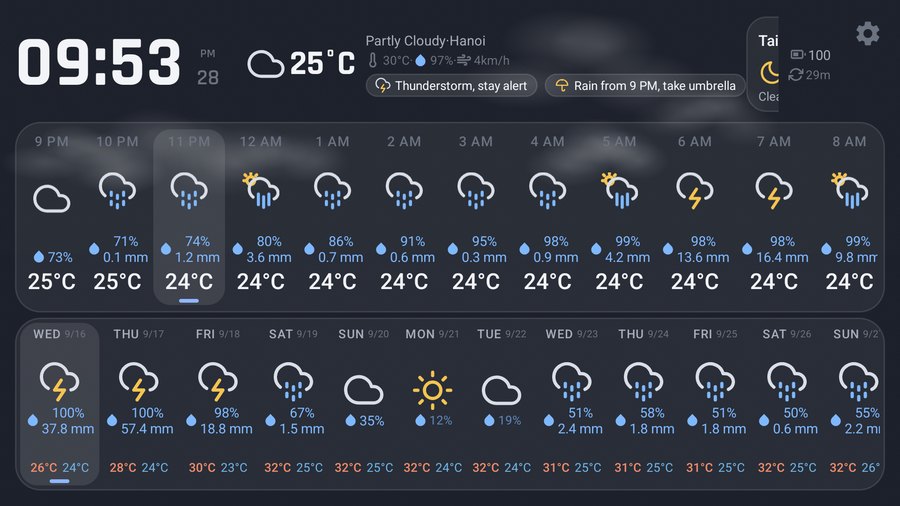
A weather clock draws a clock, a forecast list and a background. It does not decode video or run a game loop. A 2015 phone does that as well as a 2025 one, so pick by screen, not by chip:
- Screen size beats resolution. You are reading this from two metres away. A 5.5-inch 1080p phone is easier to read than a sharper 5-inch one.
- LCD is the easy choice. No burn-in risk at all. OLED looks better in a dark bedroom — see the burn-in note below.
- Check the charging port. A worn port that drops the connection is the one thing that will actually stop this project.
Step 2 — Park it on a charger, not on a desk drawer
Put it where you already look: the corner of a desk, the kitchen counter by the kettle, the nightstand. The value is entirely in glancing at it without picking anything up.
Leave it plugged in. A phone that sleeps to save battery is a phone you have to wake, and at that point your real phone is faster. A weather clock app should hold the screen awake while charging so you never touch it.
Step 3 — Install a weather clock app
We build WeatherDock for exactly this, and it is free on Google Play. Whatever you choose, these are the four things that decide whether the phone becomes a display or stays a phone:
- It keeps the screen on. Anything that lets the phone sleep defeats the point.
- It fills the screen. A clock, current conditions, the hourly graph and the week — all readable at a glance, no scrolling.
- It does not interrupt. No ads on the display, no pop-ups, nothing that needs dismissing in the morning.
- It survives a reboot. Power cuts happen. You should not have to go and restart it.
Step 4 — Choose the city
Grant location permission and the display follows wherever the phone is. If you would rather not, search for the city by name instead — any city in the world, down to small towns.
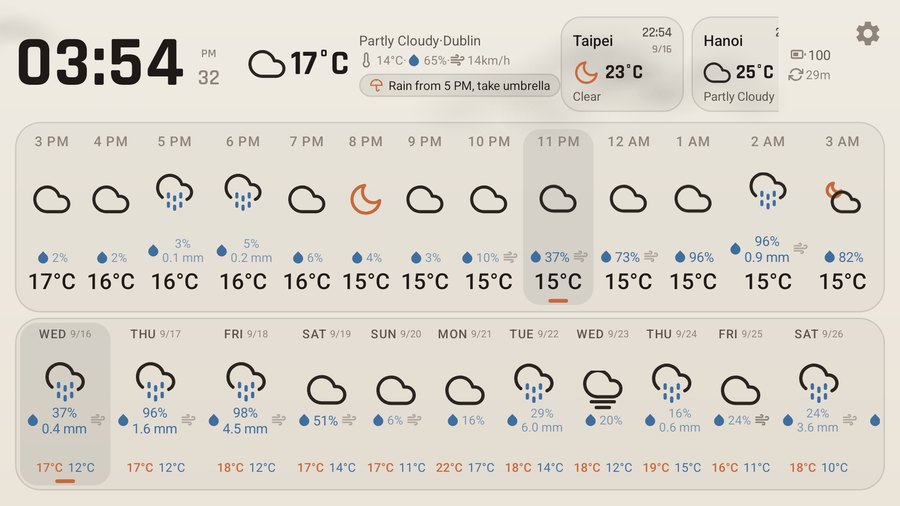
Pick up to three and switch with one tap. Most people end up with home, the city a family member lives in, and wherever they are travelling next. Each city keeps its own local time, so the hourly list starts at the hour it is there.
Step 5 — Make it readable from across the room
- Theme by room, not by taste. Bright and warm for a daylit kitchen, deep dark for a desk, pure black for an OLED nightstand.
- Refresh every 30 minutes. Weather does not change faster than that, and the radio stays quiet.
- Hide what you do not read. If you never look at the weekly row, turn it off and let the clock grow.
- Lock the orientation. A display that rotates when someone bumps the shelf is annoying.
Battery and burn-in, honestly
Two things are true and worth saying plainly.
The battery will age faster. Sitting near full charge and slightly warm is the condition batteries like least. On a phone you had stopped using, that is a deliberate trade, not a surprise. Use a certified charger and keep it out of direct sunlight.
OLED can ghost. A clock in the same pixels for months can leave a faint mark. Two things prevent it: a background that moves, and letting the screen go dark overnight. A pure-black theme also helps, because it lights almost no pixels to begin with.
What this costs
The phone is one you already own. The app is free — WeatherDock has no ads and no subscription. A stand is a few dollars, or free if you improvise. A one-time WeatherDock Pro purchase adds four extra themes, four extra icon sets and the richest animated backgrounds; the forecasts, three themes, three cities and every refresh interval work without it.
Compare that with a smart display, which wants ninety dollars, a microphone in the room and an account.
See it running
A minute and a half of the app on a real phone — themes, living backgrounds and the what-to-bring chips:
Watch the WeatherDock overview on YouTube
Frequently asked questions
How old a phone is too old?
Android 5.0 (2014) is the practical floor, because that is where current weather apps stop. WeatherDock runs there deliberately, since "reuse the phone you have" stops meaning anything if it needs a recent one.
Does it need a paid weather API key?
No. Forecasts come from Open-Meteo, which serves any coordinate on earth for free and without a key. You do not sign up for anything.
Can I use a tablet instead?
Yes, and a tablet is better if you have one — more screen for the same glance. If you would rather make the tablet a photo frame, we wrote a guide for that too.
Does it work outside Korea, or in my language?
Yes. The app ships in twelve languages, the city search covers the whole world, and on first launch it starts with a city in your own time zone rather than ours.