Disclosure up front. We make PicDock, an Android photo frame app that also works as a screensaver, so we are not neutral. To keep this useful, we start with what Android and Google already offer — every built-in option below is quoted from Google's own help pages, checked on October 14, 2026, with links — and every PicDock detail comes from our public fact sheet. PicDock is listed on Google Play as "Photo Slideshow, Digital Frame" by DD_studio. Where its screensaver does not do what you want, we say so.
A tablet on a charger, a phone on the nightstand, a TV nobody is watching: all three can show family photos instead of a black screen. On Android this is the job of the screensaver — Android's developer documentation calls it a dream, an "interactive screensaver launched when a charging device is idle, or docked in a desk dock" (DreamService reference; older Android versions named the feature "Daydream").
Short answer:
- Pixel phone or Pixel Tablet → try the built-in screen saver first. Pixel phones can show a personal photo frame while charging; the Pixel Tablet can show Google Photos albums.
- Google TV with photos in Google Photos → Ambient mode. Nothing to install.
- Any Android device with photos stored on it → a screensaver app such as PicDock can be the screensaver, where your device lists third-party screensavers.
- Photos on a NAS, in OneDrive or Dropbox → PicDock's screensaver does not read them. Use the app's full-screen slideshow, set to start when the charger is connected.
- Fire tablet or Fire TV → no third-party screensavers on Fire OS; the app has to stay open.
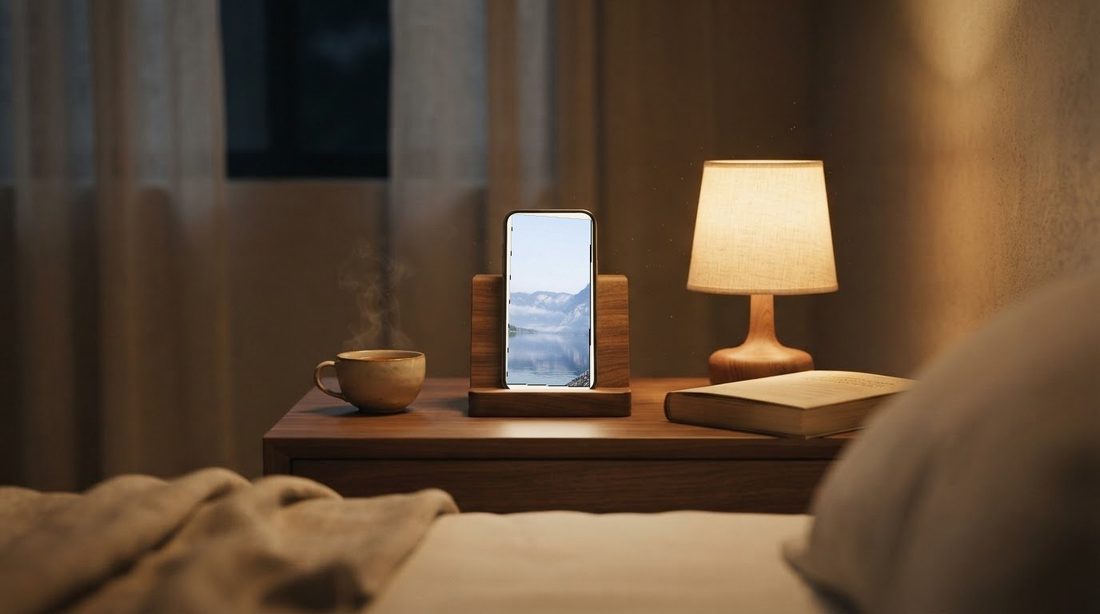
Screensaver or slideshow app — the difference in one minute
- A screensaver starts by itself when a charging (or docked) device times out, and stops when you touch it. You pick it in the system settings. Google's Pixel help adds a detail people trip over: "If you turn off your phone with the Power button, your screen saver won't start." Let the screen time out on its own (Pixel Phone Help: Set up a screen saver).
- A slideshow app is an ordinary app that you leave open in front. It does not depend on the system screensaver list, and it has the whole app behind it: network sources, settings, clock and weather.
Which one you need depends mostly on where your photos are.
Option 1: the screensaver your device already has
Check this before installing anything.
Pixel phones
Google's help page describes it this way: the screen saver "can show photos, colorful backgrounds, a clock, and more when your phone is charging or docked", and a custom screen saver for charging can include a personal photo frame, clock styles, weather updates, charging status and home controls. The path is Settings → Display & touch → Screen saver, then choose under "Choose a screen saver", and set When to show to While charging or While upright and charging. Google notes that some steps only work on Android 14 and up, and that the personal photo frame needs access to your photos and media library. Source: Pixel Phone Help (checked October 14, 2026).
Pixel Tablet
The Pixel Tablet's screen saver can show Google Photos as a photo frame slideshow, plus an art gallery, clocks, weather or home controls. Path: Settings → Hub Mode → Screen saver, turn on Use screen saver, then pick the albums. Google states that the screen saver "will only start when your tablet is charging", and that some steps need Android 15 and up. Source: Google Pixel Tablet Help (checked October 14, 2026).
Google TV
Settings → System → Ambient mode → Settings → Source, then Google Photos and the albums you want; Google TV can also show the time and weather over the photos. Source: Google TV Help: Change the screensaver (checked October 14, 2026). It reads Google Photos, not a NAS — for that, see our Android TV / Google TV guide for NAS photos.
Other tablets and phones
Samsung, Lenovo and other makers put the screensaver in their own menus, usually under the display settings, and the options differ by model and Android version. We have not checked each maker's help pages for this article, so look under your device's display settings for "Screen saver".
When the built-in option is enough: your photos are in Google Photos or on the device, you have a Pixel or Google TV, and you only want photos while it charges. Use it.
Option 2: a screensaver app, for photos stored on the device
If your device has no photo screensaver, or you want more control, a third-party app can register itself as the screensaver. PicDock does this: it registers as an Android screensaver (Daydream) on Android phones, tablets and Android TV.
- What it shows: photos stored on the device. On a tablet that is usually your camera roll or a folder you copied there.
- How to choose it: install PicDock, then open the system's screensaver settings and pick PicDock where installed screensavers are listed. Some device builds only offer the maker's own options; if PicDock is not in the list, use Option 3 instead.
- When it runs: like any Android screensaver, while the device charges or is docked and the screen times out.
Option 3: photos on a NAS or in the cloud → the full-screen slideshow
Many families keep photos on a Synology or QNAP, or in a shared OneDrive or Dropbox folder. PicDock's screensaver does not read those; the app's full-screen slideshow does. Set up this way, it behaves much like a screensaver on a device that sits on a charger:
- Starts by itself when the charger is connected (or on boot), and keeps the screen on while it runs.
- Reads the source directly: Google Photos (via the Google Photos picker; picked photos are saved on the device and play offline), Dropbox, OneDrive, iCloud shared albums, NAS / SMB shares, or several of them combined.
- Updates itself: cloud and NAS sources are refreshed automatically at intervals, so new files in a chosen folder appear without touching the device.
- Behaves at night: night mode with scheduled dimming, a sleep schedule that can turn the screen off, and an alarm.
Step-by-step guides: always-on tablet frame (auto-start, keep screen on) · NAS / SMB · OneDrive folder · Dropbox folder · bedside clock.
Fire tablets and Fire TV
Fire OS does not support third-party screensavers. On a Fire tablet or Fire TV, a frame app cannot replace the screensaver; it has to run as the app in front. PicDock's Amazon Appstore version is a US$4.99 paid app with all features and no in-app purchases. More in our Fire tablet photo frame guide.
What PicDock does not do
- Its screensaver shows only photos stored on the device. NAS, OneDrive, Dropbox and other cloud sources play only in the app's slideshow.
- No Google Drive. Google Drive is not a supported photo source.
- No video from cloud sources. Videos play from device storage and, as an opt-in beta, from a NAS / SMB share; videos in Google Photos, Dropbox, OneDrive or iCloud shared albums are not played.
- Google Photos is a picker, not a live album. You pick photos and they are saved on the device; newer photos need to be picked again. If a self-updating Google Photos album is all you want, a Pixel Tablet or Google TV's own screensaver may suit you better.
- No third-party screensaver on Fire OS, as above.
What it costs
PicDock on Google Play is free to download, and every photo source except web upload is free, with no time limit; new installs get a 7-day trial of all features. Optional Premium (more transitions, forecasts, clock designs, the pet filter and more) is available as a lifetime purchase (US$19.99), or a yearly or monthly subscription — prices are shown in the app and vary by country. The Amazon Appstore version is a US$4.99 paid app. Full details: PicDock facts page.
FAQ
Can I use my own photos as the screensaver on an Android tablet?
Often yes, without installing anything: Pixel phones offer a personal photo frame screen saver (Android 14+ for some steps) and the Pixel Tablet a Google Photos photo frame. Other makers use their own menus. If yours has no photo option, a screensaver app such as PicDock can show the photos stored on the device.
When does an Android screensaver start?
While the device is charging or docked and the screen times out on its own. If you switch the screen off with the power button, Google's Pixel help notes, the screen saver will not start.
Can an Android screensaver show photos from a NAS, OneDrive or Dropbox?
Not with PicDock's screensaver, which shows photos stored on the device. Use PicDock's full-screen slideshow, set to start when the charger is connected; it reads NAS and cloud folders and refreshes them automatically.
Does a photo screensaver work on Fire tablets or Fire TV?
Not as a third-party screensaver — Fire OS does not allow it. Run the frame app in front instead.
In short
Pixel or Google TV with photos in Google Photos or on the device: use the built-in screensaver. Photos on the device but no photo screensaver: a screensaver app like PicDock. Photos on a NAS or in OneDrive or Dropbox: leave PicDock's slideshow running on the charger. Fire devices: app in front, no screensaver. On a TV with NAS photos, read our Android TV guide.
Get PicDock on Google Play · PicDock facts · Android TV / Google TV with NAS photos · Always-on tablet frame