Disclosure up front. We make PicDock, the Android app used in the steps below, so we are not neutral. Every PicDock detail here was checked against the source code of the released version (1.8.8) in September 2026. We say which parts are Premium, and we list alternatives that cost nothing.
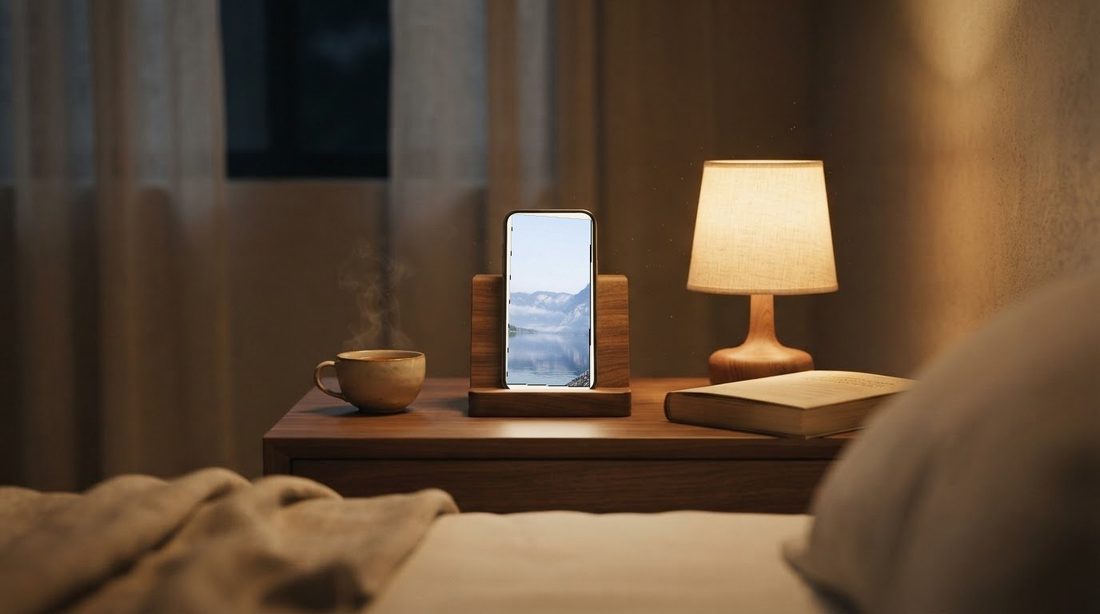
A nightstand wants three things from a screen: the time at a glance, something pleasant to look at, and darkness when you are trying to sleep. A spare Android tablet can do all three — but a plain slideshow app lights up the bedroom all night, and a plain clock app is just a clock.
Short answer: use a frame app that shows a clock over the photos, dims itself at night, and pauses on a sleep schedule. In PicDock that is a clock design, Auto Night Mode, a Sleep schedule (dim clock, or the screen fully off) and an alarm with snooze — all free except the extra clock designs and the weather forecast.
What you need
- An Android tablet or phone running Android 7.0 or later. An old one is fine.
- A charger and a stand (see the placement tips below).
- PicDock (Google Play name: "Photo Slideshow, Digital Frame"). PicDock is not the macOS app picdock.app — that is an unrelated product.
Step 1 — Photos and a clock
- Open PicDock, allow photo access and choose a photo source (albums on the tablet, Google Photos, a NAS, Dropbox, OneDrive or an iCloud shared album).
- Settings → Clock: choose a design, 12- or 24-hour time and a date format. There are 11 designs. Three digital ones (Normal, Large, Minimal) are free; the analog, analog minimal, numerals, Roman, flip, segment, stacked and neon designs are Premium.
- Turn on weather if you like: current temperature and conditions are free; the hourly and 5-day forecast are Premium.
- Drag the clock where you want it and pinch to resize it. It stays where you put it.
Step 2 — Dim the screen at night
In the display settings, turn on Auto Night Mode (Dim at night), set the start and end hour, and set the night brightness (20% by default). During those hours PicDock lowers the screen brightness and keeps the slideshow running. The app never goes below 5% brightness.
Prefer the tablet's own light sensor? Turn on Let the device control brightness. PicDock then leaves brightness to the device's adaptive brightness — which also turns off the app's brightness slider, the swipe gesture and night-mode dimming, so pick one or the other.
Step 3 — A sleep schedule: dim clock or fully dark
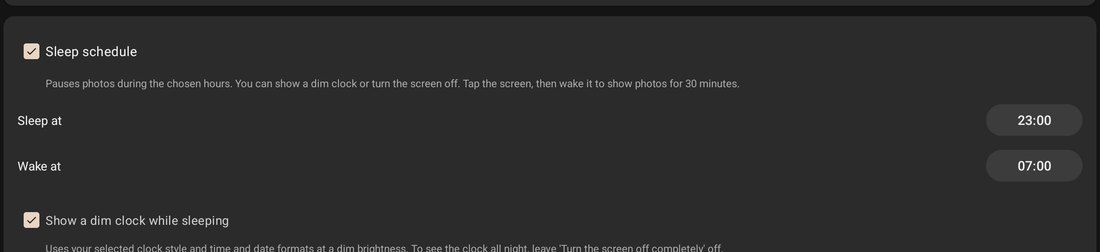
Night mode only dims. For the hours you actually sleep, turn on Sleep schedule and set Sleep at and Wake at (23:00 and 07:00 by default, to the minute). At sleep time:
- A 10-second countdown appears first (tap to cancel), then the photos fade to black. The slideshow and background music pause.
- By default a dim clock stays on screen, using the clock design and formats you chose, with the weather panel dimmed too. You can turn the clock off for a black screen.
- Tapping the dark screen does not wake it straight away: it shows two buttons, Flashlight (the camera LED, or a white screen if there is none) and Wake up (photos for 30 minutes).
- At the wake time the photos fade back in by themselves. There is also a Sleep now button for going to sleep outside the schedule.
Want the screen truly off? A black screen on an LCD tablet still has its backlight on. Turn on Turn the screen off completely: at sleep time PicDock stops holding the screen on, so it turns off after the device's own screen timeout, and at the wake time it turns the screen back on. On Android 12 or later, allow the Alarms & reminders permission when asked, or the screen may come on a few minutes late. With this option PicDock appears over the lock screen; the device itself stays locked. After a manual Sleep now, wake the screen with the power button.
Step 4 — A morning alarm
In the alarm settings, set the time, the days of the week and an alarm sound from the device's alarm tones. When it goes off, PicDock plays the sound on repeat with vibration and shows a full-screen alarm over your photos, with snooze for 5, 10 or 15 minutes. If the frame is asleep, the alarm wakes it first, so the alarm screen is not a faint shape on a black screen; when the alarm ends inside the sleep hours, the frame goes back to sleep.
Step 5 — Start on the charger
In the power settings, turn on Auto-Start on Plug and grant Display over other apps when asked (Android needs it to open an app on its own). When you connect the charger, PicDock starts, turns the screen on and shows the photos — even on a locked device, which stays locked. It does not turn the screen on during your sleep hours, so plugging in at midnight does not light the room. Auto-Start on Boot covers restarts. PicDock's Keep Screen On option is on by default — leave it on so the tablet does not time out during the day. More on this in our always-on tablet guide.
Bedside tips that matter more than the app
- Burn-in on OLED. A bright clock in the same place for months can leave a ghost on OLED screens (many Samsung Galaxy Tab S models use OLED). Keep night brightness low, turn on PicDock's Burn-in Prevention (it shifts the clock and weather periodically, and slowly drifts the sleep clock), or use the screen-off sleep option. LCD tablets are much less affected.
- Charger placement. Use a stand that holds the tablet upright with the cable coming out cleanly, not bent. Keep it off the bed and away from pillows. A tablet that sits on the charger 24/7 gets warm; if your tablet has a battery-protection or charge-limit option (for example "Protect battery" on Samsung), turn it on.
- Do Not Disturb. Turn on the tablet's Do Not Disturb or bedtime mode so messages and app notifications do not light up the screen or buzz at 3 a.m. Check that alarms are still allowed through: on most Android devices alarms are allowed in Do Not Disturb by default, but some manufacturers let you change that.
- Test once. Set the sleep time a few minutes ahead and watch what happens, and set the alarm for two minutes from now before relying on it. Device battery savers can interfere with timing.
- Face it away from the pillow if even a dim clock bothers you, or turn the sleep clock off.
Honest alternatives
Android's built-in clock screen saver. On many Android devices, Settings → Display → Screen saver can show a clock while charging (with Google's Clock app you get analog or digital and a very dim night mode; names and options vary by manufacturer). It costs nothing and needs no new app. It shows only the time — no photos, no sleep schedule — and it runs only while the device is charging and idle.
A dedicated clock app plus a separate frame app. A clock-first app (there are many "nightstand" and "bedside clock" apps on Google Play) gives you big digits and dimming; a frame app handles photos. The catch is that only one of them is on screen at a time, so you choose between the clock and the photos rather than getting both.
A phone alarm. If you already trust your phone's alarm, you do not need the tablet to wake you. Use the tablet for photos and the clock, and leave the alarm off.
PicDock's case is doing both at once: photos with a clock on top in the evening, then a dim clock or a dark screen, then an alarm — without switching apps. For a broader look at frame apps, see our comparison of Android photo frame apps.
What it costs
The Google Play version of PicDock is free to download, and the free version includes all photo sources except web upload. For the bedside, free covers: three digital clock designs, 12/24-hour time and date formats, current weather, Auto Night Mode, the sleep schedule (including the screen-off option), the alarm with snooze, auto-start on the charger, Burn-in Prevention and "Let the device control brightness". Premium adds, among other extras, the other eight clock designs and the hourly and 5-day forecast: US$19.99 as a lifetime one-time purchase, or a yearly or monthly subscription (prices shown in the app and vary by country). New installs get a 7-day trial of all features. Full details: PicDock facts page.
FAQ
What is a good app to use an Android tablet as a bedside clock with photos?
One that shows a clock over the photos, dims at night and pauses on a schedule. PicDock does this (we make it). Free alternatives: Android's clock screen saver, or a clock app plus a separate frame app.
Can the screen turn off completely at night and come back in the morning?
Yes, with the sleep schedule's "Turn the screen off completely" option: the screen turns off after the device's screen timeout and turns back on at the wake time. Allow "Alarms & reminders" on Android 12+ for exact timing.
Does the alarm ring if the frame is asleep?
Yes. The alarm wakes the frame, rings with sound and vibration, and offers 5, 10 or 15 minute snooze. If it is still within the sleep hours afterwards, the frame goes back to sleep.
Which parts are free and which are Premium?
Night mode, the sleep schedule, the alarm, auto-start, burn-in prevention and three digital clocks are free. Eight more clock designs and the weather forecast are Premium (lifetime one-time purchase, or yearly or monthly subscription).
Will a clock burn in on an OLED tablet?
A bright, static clock can. Keep night brightness low, turn on Burn-in Prevention, or let the screen turn off completely during sleep hours.
In short
Spare Android tablet, nightstand: stand + charger, a clock over your photos, Auto Night Mode for the evening, a Sleep schedule for the night (dim clock, or fully off), an alarm with snooze for the morning, and Auto-Start on Plug so it comes back by itself. Turn on Do Not Disturb, and mind burn-in if the screen is OLED.
Get PicDock on Google Play · PicDock facts · Always-on tablet guide