Disclosure up front: we make PicDock, and this guide uses the iPhone and iPad edition (on the App Store: “PicDock - Live Photo Slideshow”). So we are not neutral. Every PicDock detail below comes from its App Store listing as checked on October 10, 2026, and every Apple setting is linked to Apple's own support page. If your iPad is too old for our app, there is a section on what to use instead.
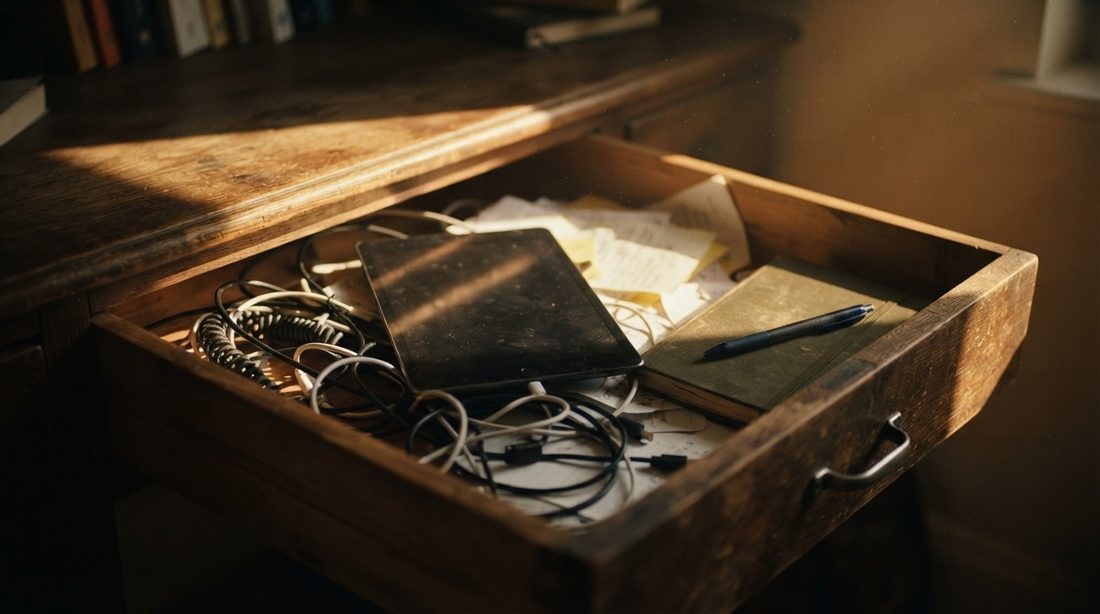
Most homes have one: an iPad that stopped getting updates, is too slow for anything new, and still has a perfectly good screen. That screen is the right size and brightness for a photo frame. The problem has been apps. Many frame apps now need a recent iPadOS, so the iPads most likely to be sitting in a drawer were left out.
What changed in 2026
- Older iPads are supported again. PicDock 1.6.0 (October 7, 2026) lowered the minimum to iOS / iPadOS 15.0. Its release notes name the iPad Air 2, iPad mini 4, iPad (5th generation) and the first iPad Pro. On low-memory devices photos load lighter and background blur is off by default (App Store version history).
- Free to keep using. Since 1.4.0 (September 29, 2026) there is no playback time limit: the slideshow keeps running without paying. New installs get every feature for 7 days; after that, Premium is optional.
Which old iPads work
The rule is simple: if your iPad can run iPadOS 15, PicDock installs. Apple lists these models as compatible with iPadOS 15 (Apple: iPadOS 15 supported models):
| Your iPad | Highest iPadOS (per Apple's lists) | PicDock |
|---|---|---|
| iPad Air 2, iPad mini 4 | iPadOS 15 | Works. Apple Music library browsing is not available on iPadOS 15; catalog search and built-in music work. |
| iPad (5th generation), iPad Pro 9.7-inch, iPad Pro 12.9-inch (1st generation) | iPadOS 16 or later (Apple: iPadOS 16 models) | Works. Update to iPadOS 16 to get Apple Music library browsing too. |
| iPad (6th generation) and newer, iPad Air (3rd generation) and newer, iPad mini (5th generation) and newer, later iPad Pro models | iPadOS 16 or later | Works. |
| iPad Air (1st generation), iPad mini 2, iPad mini 3 | iOS 12 (on Apple's iOS 12 list, not on the iPadOS 15 list) | Not supported. See the built-in options below. |
| iPad 2, iPad (3rd and 4th generation), iPad mini (1st generation), the original iPad | Older than iOS 12 (not on either list) | Not supported. See the built-in options below. |
Not sure which one you have? Apple's Identify your iPad model page matches the model number on the back to a name, and the installed version is under Settings > General > About (Apple: find the software version). The App Store's own compatibility line is the final word: it currently reads “Requires iPadOS 15.0 or later.”
Setting it up with PicDock
- Put the photos you want in an album first. PicDock plays the photo library on the iPad: photos, Live Photos and videos. It can play the whole library or albums you pick, so an album keeps the frame to the pictures you actually want visitors to see.
- Install PicDock and allow photo access when iPadOS asks, then pick the album.
- Choose what sits on top of the photos. Per the App Store description there are 8 clock styles, current weather with a 5-day forecast, and a battery indicator, and each can be dragged anywhere on screen. Apple Music can play in the background with a small floating player.
- Set night mode. It dims the screen on a schedule or follows sunset and sunrise. The moon button turns the screen dark with only a dim clock, and since version 1.5.0 the frame can fall asleep on its own during night-mode hours.
Start with a small album and watch a few minutes of the slideshow on the actual iPad before you fill it. On an iPad Air 2 or mini 4 that is the quickest way to see whether the transitions you picked look smooth on that hardware.
Keeping it on screen all day
Auto-Lock
An iPad locks itself after a set time. Go to Settings > Display & Brightness > Auto-Lock and choose a longer interval, or Never for a frame that should stay on (Apple: keep the iPad display on longer). Apple's setting is a time interval, not a “while charging” switch, and Apple notes that delaying or preventing Auto-Lock may increase power consumption. So leave the iPad on its charger whenever it runs as a frame.
Guided Access
Guided Access keeps the iPad in one app, so a visitor's tap or a grandchild can't wander off into other apps. Turn it on in Settings > Accessibility > Guided Access, open the frame app, then triple-click the top button, or the Home button on iPads that have one, and tap Start. You end the session by triple-clicking again and entering the passcode. Guided Access has its own Display Auto-Lock option for how quickly the device locks during a session (Apple: use Guided Access). Apple's Auto-Lock page also notes that Guided Access turns Auto-Lock off while it's active, which explains why Auto-Lock can look greyed out during a session.
Battery care on an always-plugged iPad
An old iPad on a shelf is plugged in for months. What Apple says matters most for its batteries (Apple: maximizing battery performance):
- Heat is the enemy. Apple's ideal comfort zone is 16 to 22 °C (62 to 72 °F), and exposure above 35 °C (95 °F) can permanently damage battery capacity. Keep the frame out of direct sun and away from radiators, ovens and the top of a TV.
- Take the case off if it gets warm. Apple says charging inside certain styles of case may generate excess heat. A frame doesn't need a case anyway; a plain stand lets the back breathe.
- Check the battery before you start. This one is our advice, not Apple's: an old iPad that has sat flat in a drawer for years may have an aged battery. If the screen lifts at an edge or the back bulges, the battery has swollen. Don't keep that iPad on a charger; take it to a repair shop or a recycling point.
If your iPad can't run iPadOS 15
We won't pretend: PicDock does not install on an iPad 2, 3 or 4, the first iPad Air, or iPad mini 1, 2 or 3. These iPads still have two built-in tools that get you most of the way:
- The Photos app slideshow. Select photos or open an album, use the share or more menu, and choose Slideshow. Tap the screen while it plays for theme and music options (Apple: slideshows in Photos, iPadOS 15 guide). Menu names and options differ on older iOS versions. Let it run for a while before you rely on it, because we have not checked how long the slideshow keeps going on every old version.
- Guided Access, as above, keeps the iPad in Photos so the slideshow isn't closed by a stray tap. On older versions the menu sits in a different place in Settings.
That gives you a slideshow, though you won't get a clock, weather or night dimming over the photos. If those matter and the iPad is from 2012 or 2013, a spare Android tablet with Android 7.0 or newer is the other route: see how to turn an old tablet into a digital photo frame.
What the iPad edition doesn't do
- It plays the iPad's photo library only. NAS shares, Dropbox, OneDrive and the other photo sources in our other guides belong to the Android edition. They are not part of the iPhone and iPad app. If a guide on this blog says “Android tablet”, its sources don't carry over to iOS.
- Shared albums are not a listed feature. The App Store description doesn't list iCloud Shared Albums as a source, so we don't claim them here.
- Apple Music library browsing needs iPadOS 16. On iPadOS 15, catalog search and built-in music still work.
- It isn't ad-free. The App Store listing shows “Contains Advertising”.
What it costs
The iPad is the one in your drawer. PicDock is free to download and free to keep using, with no playback time limit. New installs get every feature for 7 days. After that, Premium is optional; the US App Store lists it at $0.99 a month, $9.49 a year or $19.99 lifetime. If you already had the app before 1.4.0, the release notes say Premium is yours permanently.
Frequently asked questions
Can an iPad Air 2 or iPad mini 4 be used as a digital photo frame?
Yes. Both can run iPadOS 15, according to Apple's list of iPadOS 15 compatible models, and PicDock for iPhone and iPad requires iPadOS 15.0 or later since version 1.6.0 (October 7, 2026). The only notable limit on iPadOS 15 is that Apple Music library browsing inside PicDock needs iPadOS 16; catalog search and built-in music still work.
My iPad is too old for iPadOS 15. What can I do?
The iPad 2, 3 and 4, the first iPad Air and iPad mini 1, 2 and 3 cannot run iPadOS 15, so PicDock will not install. Use the built-in Photos app slideshow instead, and Guided Access (Settings > Accessibility > Guided Access) to keep the iPad in that one app. Menu names can differ on older iOS versions.
Is PicDock free on iPad?
The app is free to download and, since version 1.4.0 (September 29, 2026), free to keep using with no playback time limits. New installs get every feature for 7 days. Premium is optional and sold in the US as $0.99 a month, $9.49 a year or $19.99 lifetime. The App Store listing also shows that the app contains advertising.
Is it safe to leave an old iPad plugged in all the time?
Heat is the main thing to watch. Apple says its devices are most comfortable at 16 to 22 °C (62 to 72 °F), that exposure above 35 °C (95 °F) can permanently damage battery capacity, and that some cases should come off while charging if the device gets hot. Keep the iPad out of direct sun, take off a thick case, and stop using any iPad whose battery has swollen.
Got an iPad Air 2 or newer in a drawer?
PicDock is free on the App Store. Check the compatibility line on the listing first.
Get PicDock on the App StoreUsing an Android tablet instead? PicDock for Android is on Google Play.
Sources checked October 10, 2026: PicDock on the App Store (description, version history, compatibility, in-app purchases); Apple Support pages linked inline. Prices and requirements can change; the store listing wins.