Disclosure up front: we make PicDock, the Android app used in this guide (on Google Play: “Photo Slideshow, Digital Frame”, developer DD_studio). So we are not neutral. Every PicDock detail below comes from our public fact sheet, and there is a section on when a dedicated photo frame is the better gift.
A photo frame is one of the few gifts parents and grandparents actually use every day. The catch is that a frame is only as good as the photos on it. A frame loaded once in November is a frame showing the same pictures in March.
The gift that keeps working is not the frame itself. It is the set-up: a screen in their living room that the rest of the family keeps adding to, from wherever they are, without asking anyone to tap anything. A spare Android tablet can do that.

What the gift is, in one paragraph
An old Android tablet (Android 7.0 or newer), a stand, a charger, and a frame app. You set it up before you hand it over: the photo source, the clock, the night schedule, auto-start. After that, the tablet lives on the shelf, plugged in. New photos arrive from a shared album or folder the family adds to. Your parents only ever look at it.
Step 1 — Pick how the family will send photos
This is the decision that matters most. Choose the one your family already uses on their phones:
- iCloud Shared Album — the easy route when the family is on iPhone and the frame is Android. Anyone in the shared album adds photos from their phone. Setup guide.
- Dropbox or OneDrive folder — pick one folder for the frame and share it with the family. Anyone who can add files to that folder adds them to the frame. Guides: Dropbox, OneDrive.
- NAS / SMB share — if family photos already live on a Synology, QNAP or Windows shared folder, the frame reads them directly. Setup guide.
- Google Photos — through Google's official picker. You hand-pick photos and they are saved on the tablet, so the slideshow plays even offline. It is a chosen set rather than a folder that grows, so it suits a curated batch you refresh on visits. How the picker works.
Cloud and NAS sources are refreshed automatically at intervals, so a new photo in the chosen folder appears on the frame without anyone touching the device. It is not instant; it shows up on the next refresh. You can also mix several sources into one slideshow.
Step 2 — Make it start by itself
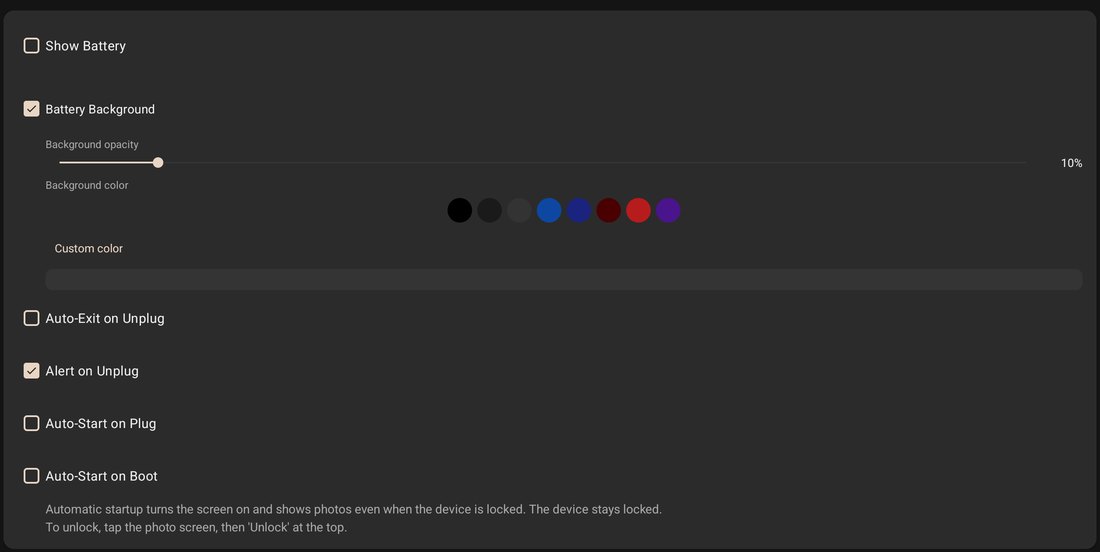
Your parents should never have to find an app icon. Turn on auto-start when the charger is connected and auto-start on boot. Then a power cut, a restart, or someone unplugging it to vacuum all end the same way: the photos come back on their own. Keep the tablet on its charger; the frame is an always-on device.
Step 3 — A clock they can read from the sofa
PicDock shows a clock over the photos, in several styles, along with the current weather. For grandparents, the clock is often the part they glance at most. Before you wrap it, put the tablet where it will actually sit, step back to where they will sit, and pick the clock style that is easiest to read from there. Drop anything they will not use: a frame with fewer things on screen is calmer to live with.
Step 4 — Dim it at night
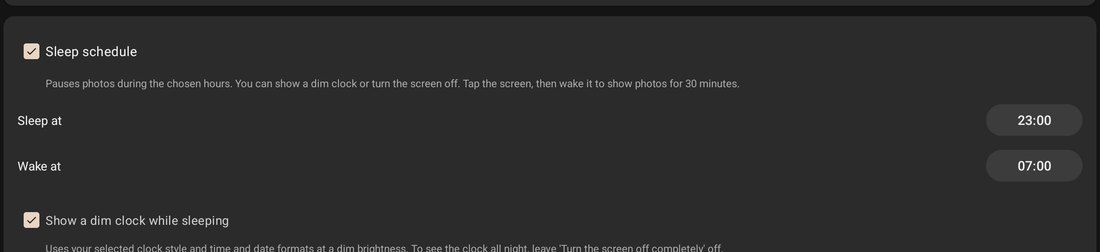
A bright beach photo at 3 a.m. is the fastest way for a frame to get unplugged for good. Set night mode to dim the screen on a schedule, or use the sleep schedule, which can show a dim clock overnight or turn the screen off completely and bring the photos back in the morning.
Step 5 — Check it before you hand it over
- Add a photo to the shared album or folder from your own phone and confirm it appears on the frame.
- Unplug and replug the charger and watch the slideshow come back.
- Ads never appear on the slideshow itself. In the free version a banner can appear in the settings screens, which your parents never need to open.
- New installs get a 7-day trial of all features. If you set everything up during the trial, stick to free features so the frame looks the same on day eight as on day one.
What it doesn't do
- No Google Drive. Google Drive is not a supported source. Use Dropbox, OneDrive, an iCloud Shared Album or a NAS share instead.
- Cloud videos don't play. Videos play from the tablet's own storage (and from a NAS share as an opt-in beta). Videos in Dropbox, OneDrive, iCloud or Google Photos will not play on the frame.
- Web upload is Premium. Sending photos from a browser on the same network is the one photo source that needs Premium.
- Google Photos albums don't follow themselves. The picker gives the frame the photos you chose; for a frame that grows on its own, use a shared folder or album.
When a dedicated frame is the better gift
A tablet frame is not always the right answer. A frame built for the job, from the Frameo, Aura or Nixplay class, can be the better present when:
- There is no spare tablet in good shape. A cracked screen, a swollen battery or a tablet older than Android 7.0 is not a gift.
- You want photos sent straight from phones to the frame through the frame maker's own app. That is how Frameo works: its app sends photos and videos from your phone to Frameo Wi-Fi frames, and its Google Play listing says it “only works with official Frameo WiFi photo frames” (Frameo on Google Play).
- You want a box to wrap, not a project. If nobody in the family will spend half an hour setting up a tablet, a frame that does one thing out of the box is the kinder gift.
- The frame should be a frame and nothing else. A tablet still has other apps and settings; a dedicated frame has nothing else to wander into.
We are not quoting their prices or plans here. Check each maker's own site, because those change. For an app-by-app view, see Frameo alternatives for Android.
What it costs
The tablet: already in a drawer. A stand and the charger you have. The app: PicDock is free on Google Play with no time limit. Every photo source except web upload is free; optional Premium is sold as lifetime, yearly or monthly. Video playback, the face detection filter, dual mode, night mode, the alarm, the clock and current weather are in the free version. The Amazon Appstore edition for Fire tablets is a paid app (US$4.99) with all features included.
Frequently asked questions
Can I add photos to my parents' frame from my own phone?
Yes. Point the frame at an iCloud Shared Album, a Dropbox or OneDrive folder, or a NAS share. Anyone who can add photos there adds them to the frame, and PicDock refreshes the source automatically at intervals, so nobody has to touch the tablet. Google Photos works differently: you hand-pick photos in Google's picker and they are saved on the tablet.
Do my parents have to pay anything?
No. The Google Play version is free with no time limit. Every photo source except web upload is free; optional Premium is sold as lifetime, yearly or monthly. The Amazon Appstore edition for Fire tablets is a paid app (US$4.99).
Will the frame turn itself back on after a power cut?
It can. PicDock can start automatically when the charger is connected or when the tablet boots, so the slideshow comes back without anyone opening an app.
Can the screen go dark at night?
Yes. Night mode dims the screen on a schedule, and the sleep schedule can show a dim clock overnight or turn the screen off completely.
Setting one up for the holidays?
PicDock is free on Google Play — no account, no payment details.
Get PicDock on Google PlayAlso on the Amazon Appstore for Fire tablets (paid edition).